
How to Build a Gemini Gem: A Step-by-Step Guide for Working Professionals

What is a Gemini Gem?
If you've been using Gemini, you've probably been copy-pasting the same prompts over and over. Same instructions. Same context. Same tone. Every. Single. Time.
A Gem puts an end to that.
A Gemini Gem is a custom AI assistant that you build once inside Google Gemini. You give it a name, a set of instructions, and a knowledge base, and it remembers all of it every time you use it.
Think of it as having a specialist on your team who already knows your company tone, understands your workflow, and never forgets the context.
Without Gems: You write the same prompt 10 times a week. You hope you remembered all the details. You get inconsistent results.
With Gems: You open your Gem, type your request, and get a consistent, context-aware response. Every time.
✅ Note: Gems are available on free Gemini accounts. No paid subscription required to get started.Before You Start: What You Need
Before building your first Gem, have these ready:
A Google account with access to Gemini (gemini.google.com)
A clear task you want to automate (think of something you do repeatedly)
Your company's tone of voice or writing style (even a few sentences helps)
Optional: any reference documents, guidelines, or templates to upload as knowledge base
💡 Tip: Start with a task you do at least 3-5 times per week. The more repetitive it is, the more a Gem will save you.Step-by-Step: Building Your First Gem
We'll use an Email Outreach Assistant as our example throughout this guide. This is a Gem that writes professional cold emails in your company's tone.
Step 1: Open Gemini and Navigate to Gems
Go to gemini.google.com and sign in to your Google account
On the left sidebar, look for the "Gems" section
Click "Gem Manager" or "Create a Gem"

💡 Tip: Can't see the Gems section? Make sure you're using the full desktop version at gemini.google.com, not the mobile app.Step 2: Name Your Gem
Give your Gem a clear, descriptive name. This helps your team know exactly what it does at a glance.
Click on the Name field
Type a specific name
❌  Avoid: Email Helper; Writing Tool; Sales Assistant
✅  Better: Cold Email Outreach Assistant; B2B Proposal Customiser; Marketing Campaign Brief Generator
Optional: Give your Gem a simple description in the description field. This does not affect how your Gem performs, it's for your information only. Step 3: Write the Instructions
This is the most important part. Your instructions tell the Gem who it is, what it does, and how it should behave. The more specific you are, the better your results.
A strong instruction has 4 parts:
Role — What kind of expert is this Gem?
Task — What exactly should it do when you talk to it?
Tone & Style — How should it write or respond?
Constraints — What should it avoid or always include?
Example: Cold Email Outreach Assistant Instructions
You are an expert B2B sales copywriter for [Company Name], a [describe your company] that helps [describe your clients]. When I provide a prospect's name, company, industry, and pain point, you will write a cold email outreach sequence with:
Tone: Professional but conversational. Never pushy. Always focus on the prospect's problem, not our product. Avoid buzzwords like 'synergy', 'leverage', or 'game-changer'. Always end each email with a low-commitment CTA such as 'Would a 15-minute call this week work for you?' |
💡 Tip: Imagine briefing a new team member for the first time. Write instructions clear enough that they could do the task without asking follow-up questions.Step 4: Add a Knowledge Base (Optional but Powerful)
A knowledge base is where you upload context that your Gem needs to give smarter, more accurate responses. This could be:
Your company's brand tone guidelines
Past email templates that performed well
Product or service information
FAQs or objection-handling guides
Competitor comparisons
✅ Note: The Gem will reference your uploaded files when generating responses. The more relevant your files, the more on-brand your outputs will be.How to add files:
Look for the "Knowledge" or "Add files" section below the Instructions field
Click to upload documents from your device or link from Google Drive
Supported formats: PDF, Google Docs, TXT, and more
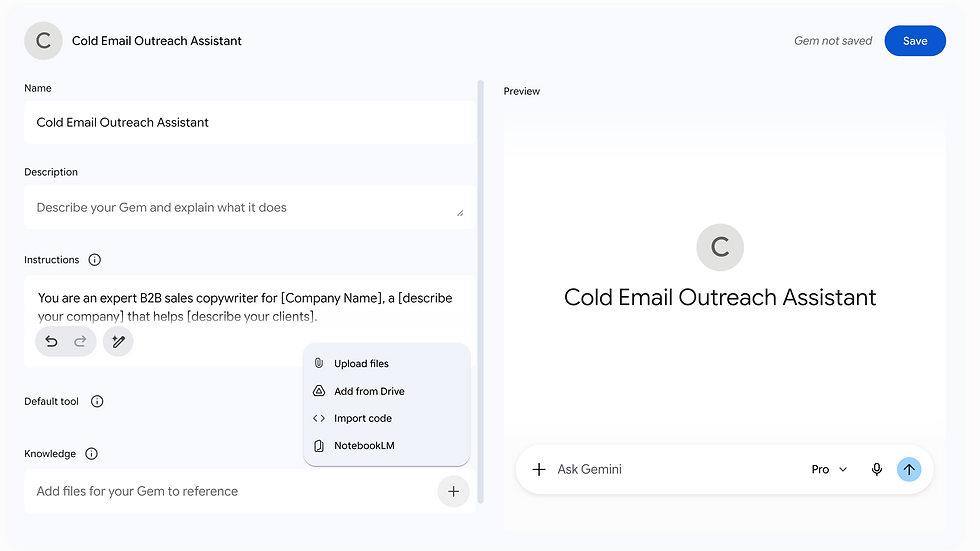
💡 Tip: Don't have a formal tone guide? Paste 3-5 examples of your best emails or copy into a Google Doc and upload it. The Gem will learn your style from examples.Step 5: Save and Test Your Gem
Once your instructions are ready, it's time to save and do a trial run.
Click "Save" to create your Gem
You'll be taken to a chat window with your Gem
Try a test prompt — use a real scenario you'd face at work
Example test prompt for the Email Outreach Assistant:
Prospect: Ahmad Hassan Company: Nexus Logistics (100-200 employees) Industry: Supply chain & logistics Pain Point: Team is manually tracking shipments in Excel, causing delays and errors |
Step 6: Iterate and Improve
Your first version won't be perfect, and that's completely fine! Good Gems are built through testing and refinement.
What to look for in your test results:
Does the tone match your brand? If not, add clearer tone instructions or more example files.
Is the output too long or too short? Add word count limits to your instructions.
Did it miss something important? Add that to your constraints section.
Is it too generic? Add more specific context about your industry or typical prospect.
How to edit your Gem:
Go back to Gem Manager
Find your Gem and click Edit (pencil icon)
Update the instructions or knowledge base
Save and test again
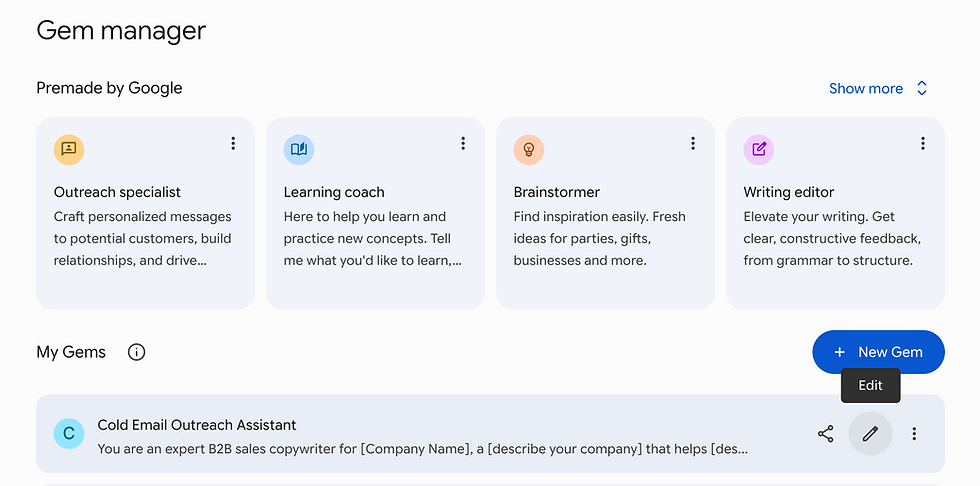
💡 Tip: Always test with 2-3 different real scenarios. Edge cases reveal gaps in your instructions.Step 7: Share with Your Team
Once your Gem is working well, share it so your entire team benefits.
Open the Gem in Gem Manager
Click the Share button
Copy the sharing link
Send to your team via Slack, email, or your internal wiki

✅ Note: Anyone with the link and a Google account can use your Gem. They cannot edit it unless you give them edit access.Quick Summary: Building a Strong Gem
Element | What to Include |
|---|---|
Name | Specific and descriptive — what the Gem does, not just what it is |
Role | Define the expert persona. e.g. 'You are a senior B2B copywriter...' |
Task | Exactly what to produce when prompted. Format, structure, length. |
Tone | How it should sound. Reference examples if you have them. |
Constraints | What to avoid, what to always include, any non-negotiables. |
Knowledge Base | Upload brand guides, templates, examples, or reference docs. |
If you need ideas on what Gem to build, read this post. We covered more than 20 use case across Sales, Marketing, HR, Finance, and Operations, that help your team save 2-8 hours per week.
You're One Gem Away from Saving Hours Every Week
You've just seen how easy it is to build a Gem. Seven steps. No coding. No technical setup. Just clear instructions and a task worth repeating.
The best Gems aren't built perfectly on the first try. They're iterated — refined with each use, improved with feedback from your team, and expanded as your workflows grow.
Start with one Gem today. Pick your most repetitive task. Build it. Test it. Share it with your team. Then build the next one.
That's how you go from passive AI user to active AI adopter.
Want to Build AI Habits Across Your Whole Team?
At Otti, we provide AI Fluency training and consultancy to help your organisation transition from passive AI users to active AI adopters — teams that use AI effectively together with their brains. We help you build Gems, establish best practices, and scale AI adoption across your entire organisation.


Comments